Download OANDA MT5

Build your trading workspace with MetaTrader 5. Analyse multiple charts, develop MQL5 tools and test automated strategies on desktop, then use compatible mobile or web applications to follow positions and manage orders.

  • Windows · Mobile · Web
  • MQL5 · EAs · Strategy Tester
  • Live and demo accounts
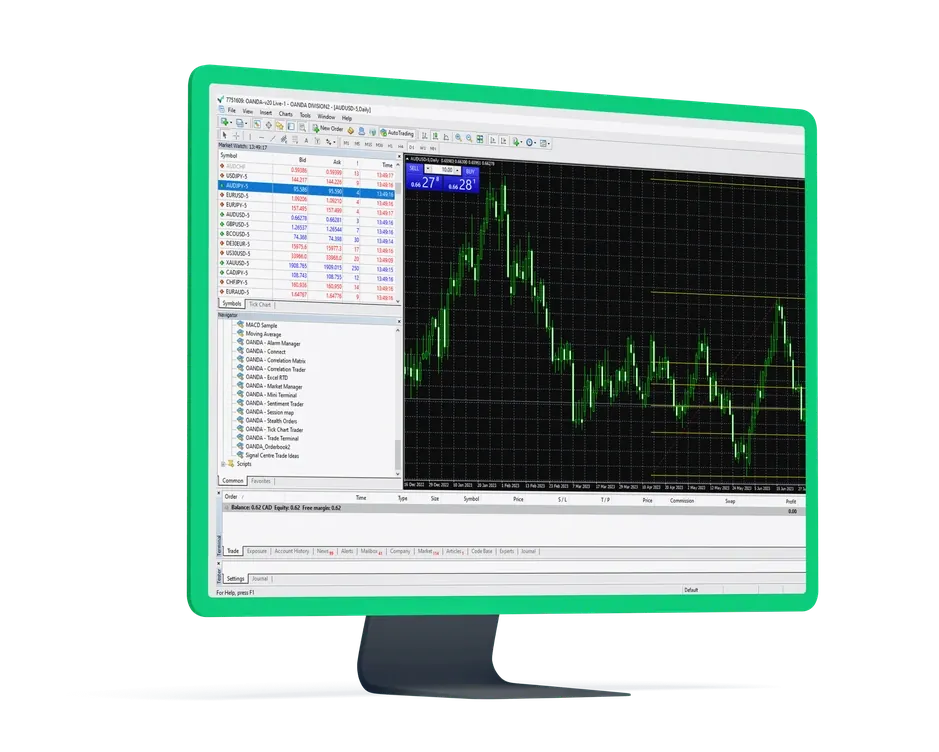
OANDA MetaTrader 5 desktop trading platform

Choose how you use MT5

Desktop provides the development and testing environment. Mobile keeps quotes and orders close at hand, while web trading offers browser access. Match the application and server to the OANDA entity that holds your account.

Windows desktop

Use multiple charts, custom indicators, Expert Advisors and strategy testing. This download is the OANDA TMS desktop version; clients of other OANDA entities should obtain the version specified in their account portal.

Download TMS desktop

macOS

MetaQuotes provides a Mac application for compatible MT5 accounts. OANDA Asia Pacific lists this application outside its supported versions, so check system and program compatibility separately.

Download for macOS

iPhone / iPad

Follow prices, review positions and manage supported orders in the MetaTrader 5 app. The link opens the App Store; search for MetaTrader 5 and connect to the server assigned to your trading account.

Visit App Store

Android

Access charts, positions and order controls through MetaTrader 5 on Android. The link opens Google Play; search for the app there. Availability depends on your device and store region.

Visit Google Play

MT5 WebTrader

Use the web trading address supplied for your account to access orders and history in a browser. Desktop EAs and custom indicators do not run here. The button below opens an account application, not WebTrader.

Apply for an account

Select the OANDA entity and server shown in your account details, then enter the matching MT5 trading login and password. OANDA Asia Pacific and OANDA TMS use different account environments. Complete any additional verification requested by your terminal.

21timeframes
Chart periods from one minute to one month
38indicators
Built-in studies for technical analysis
44objects
Drawing and analytical objects for chart studies
MQL5tools
Program development and multi-threaded strategy testing

From chart analysis to order execution

Use MT5 to study price action, manage orders and develop trading programs. Available markets, execution rules and trading permissions come from the OANDA account connected to the terminal.

Depth of market

View the bid and ask levels and available volumes provided for supported instruments. The displayed depth helps explain liquidity, but does not guarantee that an entire order will fill at the best visible price.

Economic calendar

Check scheduled economic releases alongside your charts. Compare the timing of upcoming events with current price action to add macroeconomic context to your analysis.

One-click trading

Submit supported orders from charts and trading windows with fewer steps. Confirm the instrument, direction and volume before using the feature; fills remain subject to market and execution conditions.

MQL5 and Expert Advisors

Turn analysis or order rules into MQL5 programs using MetaEditor. Compile Expert Advisors, scripts and custom indicators for MT5; MQL4 programs require adaptation before they can be used.

Multi-threaded strategy testing

Evaluate Expert Advisors on historical data and compare parameter settings. Test results depend on data quality and cost assumptions, and do not establish how a strategy will perform in live trading.

Autochartist

Where your OANDA service provides the integration, load Autochartist into MT5 to review recognised chart patterns and price areas. Use these findings as starting points for further analysis.

21 timeframesM1M2M3M4M5M6M10M12M15M20M30H1H2H3H4H6H8H12D1W1MN

Build your desktop trading workspace

Desktop MT5 brings multiple charts, program development and strategy testing into one environment. Organise your analysis, add compatible tools and keep the terminal running when a local program needs continuous market access.

  • Develop and run MQL5 Expert Advisors and custom indicators
  • Client-side trailing stops need an active terminal to keep updating
  • Add the Autochartist integration where your account service supports it

MQL5 development

Create and compile EAs, scripts and indicators in MetaEditor. MT5 uses MQL5, so existing MT4 programs cannot simply be loaded as MT5 programs.

Expert Advisors

Monitor conditions and submit permitted orders through programmed rules. Keep the execution environment connected and check instrument restrictions; OANDA Asia Pacific does not permit EAs to trade Share CFDs.

Custom indicators

Add compatible MQL5 indicators to extend your chart studies. An indicator calculates and displays analysis; automated order placement requires a separate trading program.

Autochartist

Review automatically identified patterns and potential support or resistance areas on your charts. Access depends on the integration supplied by your OANDA service.

Strategy Tester

Compare an EA’s historical results across parameters and supported markets. Include spread, commission and execution assumptions when interpreting the outcome.

Multi-chart workspace

Arrange charts for different instruments and timeframes, then save a familiar layout. Additional charts and indicators increase the resources required from your computer.

Trading reports

Review completed trades, charges and account history through the terminal’s reporting tools. Use the relevant account records when checking transactions and balances.

Hedging and pending orders

Use supported limit and stop orders, and manage opposing positions where the account mode permits hedging. Order availability and margin treatment depend on the instrument and account.

Connect your OANDA MT5 account

The trading login, password and assigned server identify your account connection. Use matching credentials on each compatible device, and distinguish live accounts from demo environments.

  1. Login and server

    Find your MT5 account details in the portal supplied by your OANDA entity. Select the assigned server rather than choosing a different OANDA division based only on its brand name.

  2. Live and demo environments

    Save separate accounts in MT5 and switch between them as needed. Demo accounts use virtual funds; check the connected account and server before submitting an order.

  3. Cross-device access

    Compatible applications can display the same server-side positions and orders. Local layouts and programs may remain on one device, so signing in on a phone does not transfer a desktop EA.

OANDA MT5 download FAQ

Answers about browser access, Mac compatibility, account servers and desktop tools. For funding and other account questions, see the OANDA FAQ.

Does OANDA MT5 WebTrader require an installation?

No. Use the browser trading address provided for your account. The hub.oanda.com/apply/ buttons on this page open an account application, not a trading terminal. Browser trading does not run desktop EAs or custom indicators.

Can I use OANDA MT5 on a Mac?

MetaQuotes provides a Mac application for compatible accounts. OANDA Asia Pacific identifies it as an unsupported application. Confirm compatibility for your operating system and programs, or use the web environment supplied for your account.

How do I find OANDA when I log in to MT5?

Search for the division shown in your account details and choose the matching server. Refresh the server list if it is missing. Singapore and TMS accounts use different environments, so the trading login and server must belong to the same account.

Can MT5 keep both live and demo accounts?

Yes. MT5 can save multiple account connections for switching, though one terminal instance normally connects to one account at a time. Each live or demo account uses its own credentials and server.

Will the same positions appear on desktop, web and mobile?

Yes, when the applications connect to the same compatible account. Positions and orders are recorded on the server, while chart layouts, EAs, alerts and client-side trailing stops may depend on the local terminal.

Does OANDA MT5 include 28 premium plugins?

The 28-tool description relates to OANDA’s MT4 premium upgrade and should not be applied to MT5. MT5 provides its own analysis and development tools; additional integrations depend on the OANDA service and tool version.

OANDA MT5

Download OANDA MT5

Choose desktop for chart analysis and program testing, or a compatible mobile or web application for managing positions. Confirm that the version and server match your trading account.

  • Windows · Mobile · Web
  • 21 chart timeframes
  • MQL5 · Expert Advisors